Best practices for using Claude AI with Flowfinity
Get your app configuration right and Claude handles complex Flowfinity requests reliably — picking the correct operation and filling fields accurately. Leave it vague and you'll spend your time correcting guesses. This article covers the choices you can make in your app configuration that close the gap.
How Claude reads your app
When Claude connects to Flowfinity through MCP, it receives a set of tools. Each AI-enabled view or operation in your app automatically becomes a tool Claude can invoke. Flowfinity generates these tool definitions from your published app configuration.
Two pieces of that configuration do most of the work: AI Description and AI Instructions. They tell Claude what each operation, view, or field is for and how to use it correctly. Think of it as briefing a new hire who can't ask follow-up questions. The clearer you make the brief, the fewer the mistakes.
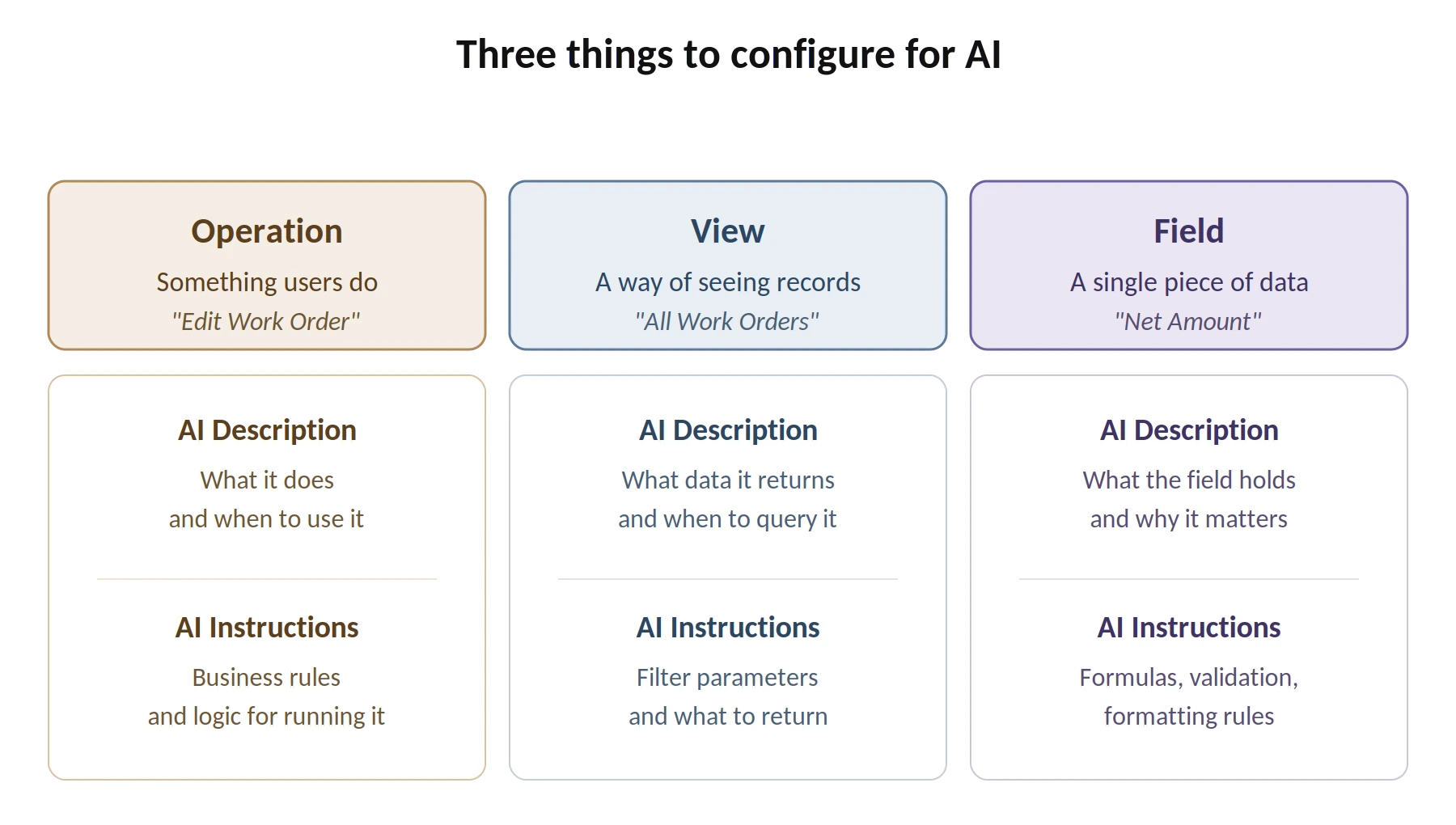
AI Descriptions and AI Instructions are edited in the App Editor, on the Configure tab. There are three things you can configure: operations, views, and individual fields. Each works the same way.
Start with clear labels
Before writing any AI Descriptions or Instructions, review the labels on your fields, operations, and views. These are the first thing you're handing Claude — make them count. Technical shorthand and internal abbreviations that make sense to your team will confuse the AI.
| Unclear labels | Clear labels |
| Op1_Edit | Edit Work Order |
| Sdayreminder | 7-Day Overdue Alert |
| assetcount | Asset Count |
| Assignedtech1 | Assigned Technician |
Clear labels reduce the need for lengthy AI Descriptions. When the label itself communicates purpose, the Description can focus on specifics rather than restating the basics.
Write descriptions that help Claude choose
The AI Description field is how you tell Claude whether a given operation or view is the right one for the job. Answer two questions: what does it do, and when should it be used? Include enough domain-specific terminology that you're covering the words your users will actually say.
Operation descriptions
Default (auto-generated): "'EditRecord' edits the specified Inspections record. Available in states Default, Updated by Updater."
Improved: "Updates an existing inspection record. Use this to modify the assigned technician, scheduled date, location, or inspection status. Requires the RecordID of an existing record. Do not use this to create new inspections."
A strong operation description:
- States what the operation does in business terms. Not technical mechanics — what it accomplishes for the user.
- Uses the words your users will actually say. For an inspection operation: "site visit," "deficiency," "compliance check." You're building the vocabulary Claude will match requests against.
- Tells Claude when to prefer this operation over similar ones. And, just as importantly, when not to use it.
View descriptions
Default: "Returns records from Inspections."
Improved: "Returns inspection records with location, assigned technician, scheduled date, and compliance status. Use this to look up inspections by site, technician, or date range before creating or updating records. Supports filtering by location, technician, status, and date range."
A strong view description tells Claude what data comes back, which synonyms your users might use for it, what filter parameters are available, and how you want Claude to use the view in a workflow — for example, look up values before writing.
Write instructions that prevent mistakes
AI Instructions are where you tell Claude how to execute an operation correctly. Put business rules, calculation formulas, and validation logic here.
At the operation level
Cover how the operation runs as a whole — prerequisites, the order in which steps need to happen, rules that span multiple fields, and any context Claude needs to execute the operation correctly.
At the field level
Focus on fields where you can see the auto-generated defaults falling short — lookup behavior (which app to query, what values to use), business rules, and non-obvious formatting. Not every field needs refinement.
Example: Expense claim Net Amount field
| Before (ambiguous) | After (precise) |
| Description: "Net Amount — Monetary value" AI Instructions: "Monetary value with up to 2 decimal places (non-negative)." |
Description: "Net Amount — Total excluding GST/HST" AI Instructions: "Net Amount = Total Payable minus GST/HST (federal tax only). Always use the final Total Payable amount from the invoice. Do not subtract PST, QST, or other provincial taxes. Monetary value with up to 2 decimal places (non-negative). Convert all foreign currency amounts to CAD before entering." |
The difference: the first version tells Claude what kind of value to enter. The second tells Claude how to calculate it. Only the second survives contact with a real invoice.
Where things go wrong
The following patterns account for most of the errors in our experience. Each one has a straightforward fix.
- Explain what calculated fields mean. Claude needs the business meaning: which components are included, which are excluded, and what each term refers to. For a Net Amount that excludes GST, AI Instructions should say so explicitly, including which taxes are excluded and which currency the result is in. Without that, Claude can read the value but can't reason about it correctly when a user asks to compare, validate, or build on it.
- Tell Claude where to look up values. Lookup fields reference records in another app. Without a pointer to the right app and valid values, you're asking Claude to guess — or skip the field entirely. Specify the app and view, and whether both Title and Value properties are needed. Example: "Part Used — Lookup from the 'Parts' app. Use Parts_ViewAllRecords to retrieve valid options. Set both Title and Value to the part name."
- Make conditional requirements explicit. When a field is required only under certain conditions, the default configuration won't capture it. Write the rule out. Example: "Inspection Status: select 'Pass', 'Fail', or 'Pass with Conditions'. If 'Fail' or 'Pass with Conditions', the FollowUpReason field is required and must describe what needs to be addressed."
- Differentiate operations that sound alike. If your app has multiple operations with similar names — "New Inspection" and "Re-Schedule," for example — you're leaving the choice to chance. Each Description should state when to use the operation and when not to. Flowfinity's documentation puts it directly: "Claude decided to use the explicit re-schedule operation due to wording in the user prompt. If this is not the desired behavior, then this situation must be addressed for both operations in AI Instructions."
- Explain nested record structures. Nested records — deficiencies within an inspection, parts used in a work order — are the most complex structures to hand to Claude. Your operation-level AI Instructions must explain the child record structure and highlight any fields with special rules.
- Split operations that try to do too much. Each operation you expose to Claude should have one clear purpose. When an operation handles multiple workflows or accepts wide-ranging optional fields for different scenarios, you're expanding the surface area for mistakes. If an operation needs a long, complex Description to explain all its uses, split it into focused operations instead.
Managing Claude's context window
You shape how much context Claude carries. Every tool definition, every record a view returns, and every message in the conversation consumes space in Claude's context window. When it fills up, Claude starts to overlook earlier instructions and results get inconsistent.
A few Flowfinity-side settings keep the volume down. Set the view data format to View Columns, this sends only the columns visible in the view layout. Add view parameters so Claude can filter results in the database before they come back, rather than receiving everything and filtering in memory. Disconnect any MCP connectors you're not actively using, since each one consumes space for its tool definitions. And keep your AI Descriptions and AI Instructions precise rather than verbose: every character in those fields travels with every request.
Quality control and security
You're the domain expert in this relationship. Claude only knows what your app configuration tells it — so treat that configuration as the authoritative brief, and build quality control into your workflow before any gaps affect your data.
Use approval mode for write operations. In Claude's connector settings, set write and delete tools to "Needs approval" and you'll see exactly what Claude intends to submit before it executes. That gives you a chance to catch mistakes before they reach your data. Flowfinity also flags every change made through MCP with a warning icon in the record history view, so you can confirm after the fact that Claude submitted what you intended.
Apply the principle of least privilege. Exposing operations and views through MCP gives Claude the ability to read and write on behalf of authenticated users, so enable only what's actually needed for AI-assisted tasks and leave everything else disabled on the Configure tab. Flowfinity's permissions model still applies — Claude can only access what the authenticated user is allowed to access.
Testing and iterating
The most effective way to tighten your app configuration is to put it in front of real scenarios and watch what happens.
- Set write operations to "Needs approval" in Claude. Each tool can be set to "Always allow," "Needs approval," or "Block." "Needs approval" lets you inspect every submission before it lands.
- Test with real documents and real data. Generic requests won't surface the ambiguities in your configuration. Use the same documents and scenarios your team works with daily.
- Check the submitted values carefully. Did Claude pick the right operation? Did it populate lookup fields correctly? Did calculated fields produce the expected result?
- Check both sides when something goes wrong. Sometimes the issue is in your AI Instructions — a missing rule or an ambiguous description. Other times the user's request was unclear or missing context. Review both before making changes.
- Republish and test again. Configuration changes take effect after you publish the app.
What to try next
Claude Projects and Skills extend the techniques in this article. A Project gives you a persistent workspace for Claude — your business process documentation, your custom instructions, and only the MCP connectors relevant to the task — so you don't re-explain context in every conversation. Skills go further by packaging reusable procedures (data entry standards, inspection scheduling steps) that Claude loads automatically when the task matches.
Pre-publish checklist
Before publishing an app for AI use, verify:
- Fields, operations, and views have clear, human-readable names — no abbreviations or internal codes.
- Every operation has an AI Description that states what it does and when to use it.
- Every operation has AI Instructions covering key business rules and validation logic.
- Monetary and calculated fields have explicit formulas in AI Instructions, not just in Description.
- Lookup fields specify which app and view to query, and what format to use for values.
- Conditional fields have clear rules for when they are required.
- Similar operations are clearly differentiated in their Descriptions.
- Views use View Columns format unless nested data is needed.
- Views have parameters for filtering to minimize data returned.
- Write operations are set to "Needs approval" during initial testing.